
You may need to reset wavlink wifi extender if you have forgotten the device’s admin password, or if a firmware update has failed, or maybe if there’s an issue with the hardware performance and you wish to do a fresh installation. However, it’s important to remember that when you perform the reset process, the extender settings are restored to default factory state. This will remove all the customised settings and will require reconfiguration. Therefore, it is only advised to reset an extender as the last resort and only if you know how to reconfigure the same. If you are looking for detailed information on how to reset a wavlink extender, this blog is what you need to read.
Ways you can Reset Wavlink WiFi Extender
The Wavlink extender reset process can be completed in two ways, namely:
- Hard reset
- Soft Reset
While the hard reset process makes use of the physical reset button located on the bottom of your device, you can use the web settings wizard in the soft reset method. You may choose to proceed with any of these methods based on your convenience.
Using the Reset button (Hard Reset method)
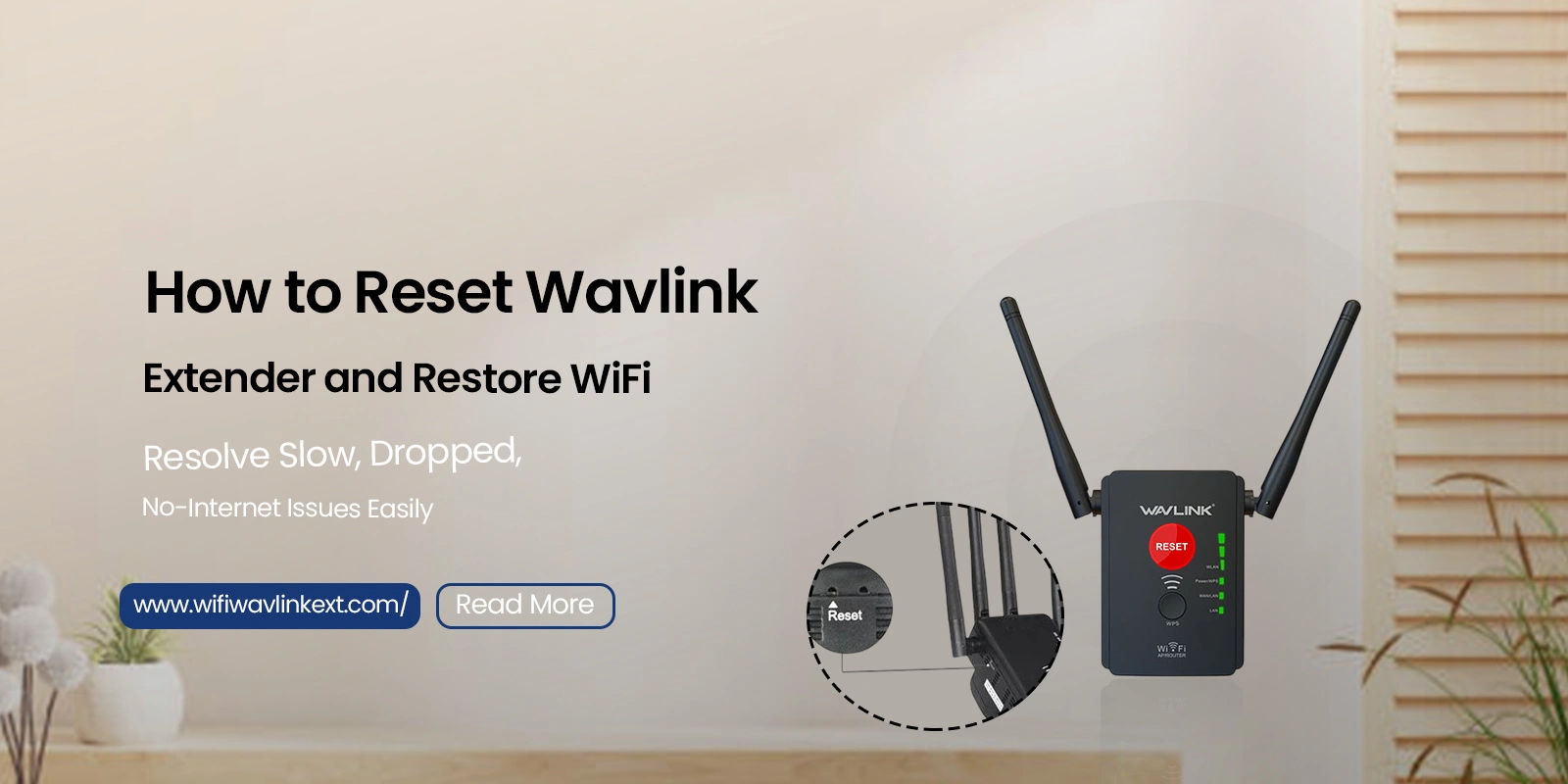
- To start with, look for the reset button or a small hole on the Wavlink extender. Use a paper clip to press this button.
- Press and hold the button for 10 seconds and release the same when the LEDs on the front panel begin to flash repeatedly. Allow the extender to reboot.
- The hard reset process is completed. After Wavlink WiFi range extender reset, access the Wavlink Extender Setup page to configure the settings again.
Reset using the web-based setup page (Soft Reset)
For this wavlink wifi range extender reset method, you have to log into the Wavlink web-based interface. You can do this by accessing the Wavlink Wi-Fi extender login page using the IP address 192.168.10.1. Here are step-by-step instructions on how to reset a Wavlink extender device:
- Connect any wireless device to the home network through either a wired or wireless connection.
- Here, we will use a wired connection to connect the computer system to the network. A wired connection is more reliable and secure than a wireless connection.
- Use an Ethernet cable and connect it from your computer to the Wavlink Wi-Fi extender.
- Next, launch an internet browser from your computer and type the web address http://wifi.wavlink.com in the address bar. Or you can use the Wavlink extender default IP address 192.168.10.1 in the address bar of the browser and press ‘Enter’.
- Enter the default login details of the Wavlink WiFi extender and click login.
- If you have a Wavlink Wi-Fi extender then click on the link given after “To log in with your Wavlink Wi-Fi account”.
- Enter the email address and password and click on the login button.
- Wavlink extender settings page displays, click on the extender settings.
- Click on the ‘Device Administration’ tab and select ‘Reset’. Click on ‘Factory Reset’.
- The wavlink factory reset process starts once you click the ‘Reset’ button. The status of the same will be visible on the screen itself. Once the process is complete, the extender will reboot, and you can reconfigure the settings.
FAQs
What are the steps to reset wavlink wifi extender?
Resetting your Wavlink extender is easy with the Reset button. Locate the same on the device. You can find one on the back or the side panel. Use a thin object like a paperclip or something else to press and hold the button until the device LEDs begin to flash. Once they do, allow the device to reboot and you can reconfigure it for internet access.
How do I reset the password for Wavlink extender?
You can sign in to the extender setup wizard online using the default IP address i.e. 192.168.10.1. Once the page is accessible, you can sign in using the default credentials and navigate to the WAN settings to edit them. Once you have changed the details, you can save them and reconnect your devices to the network to start using the internet.
The Final Word
Network, and login related issues can take a toll on your internet use and overall experience. While general troubleshooting can help, knowing how to reset a wavlink extender is essential for the worst case scenario.
Both the reset methods described in this blog can be used to reset the device settings. Go for the hard reset option if you have forgotten the admin password as you do not know the password to login to your Wavlink extender. In case you face issues during the reset process, you can contact us. Stay tuned on this website for resolution on more queries related to the Wavlink wifi extender.