
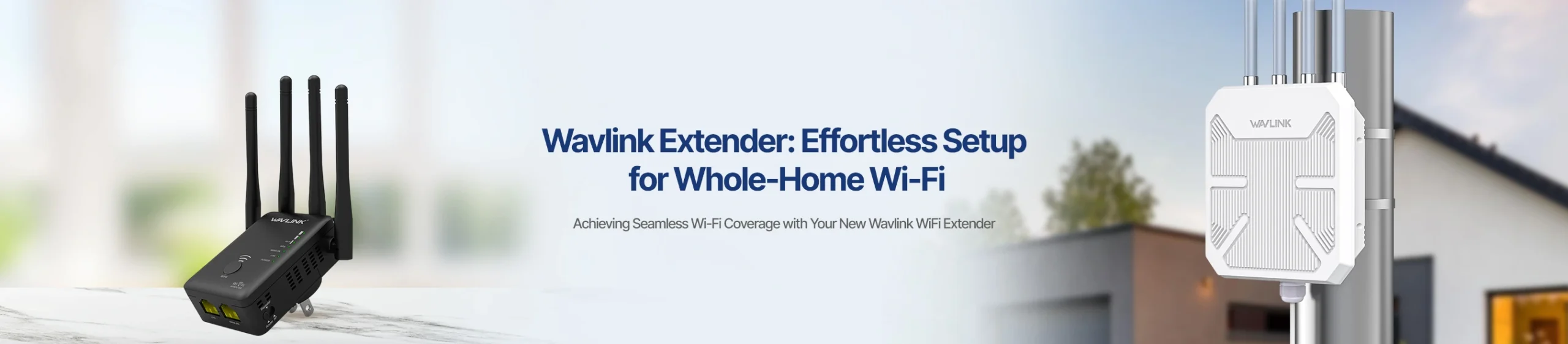
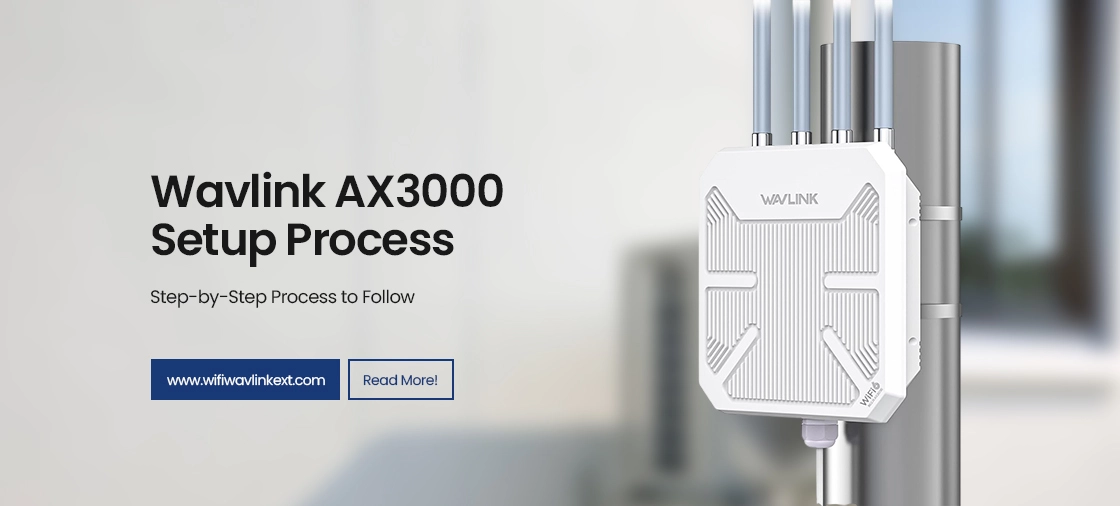
Having internet connectivity at your home makes it easier to stay connected with the digital world. However, WiFi routers have limited coverage and this might limit your ability to accomplish tasks online. This is where devices like Wavlink AX3000 WiFi 6 Outdoor Wireless Access Point come in- helping you access the internet at all corners of your home/property with ease. You can install this device to get the most out of your internet connection at your home. If you are planning to buy the same, learning about the Wavlink AX3000 Setup process becomes essential.
This blog will detail the steps that constitute the Wavlink AX3000 installation process. Starting from Wavlink login all the way to Wavlink AX3000 mesh setup, we’ll discuss what goes into ensuring seamless connectivity throughout your home.
About Wavlink AX3000
The Wavlink AX3000 WiFi 6 Router can also be used as an outdoor access point to get robust and extended WiFi coverage in outdoor areas of your home and office. The device features dual-band AX3000 speeds, support for PoE(Power over Ethernet) connections and IP67 grade weather resistance. This router is the perfect addition to your home network and can help add up to 256 devices in various outdoor settings including homes, camping sites, factories, communities, and farms.
When you shop for the device, you’ll find several components inside the box, including:
- The AX3000 WiFi 6 Outdoor Access Point device itself
- 4 Nos Omni Antennas
- 4 Nos Cable Ties to secure the cables
- 1 LAN cable connector
- A Wrench
- 2 Nos Silicone Pads
- Screws
- Some Passive PoE Components, and
- A Quick Installation Guide
Ensure you have these in the box, in order to make the device functional.
Wavlink AX3000 Installation Process
The Wavlink AX3000 is designed for use outdoors and can be installed in various locations to optimise network coverage. However, ensure that the mounting location is such that it provides a line of sight coverage to the desired location. This is helpful since it helps avoid obstructions. Once you have finalized the mounting location, below is the information you need for Wavlink AX3000 Setup:
PoE Connection
Your Wavlink WiFi 6 Access Point supports both 802.3AF/AT active PoE and passive PoE. This means that it allows both data and power transfer through a single Ethernet cable. You can try using a CAT5E or higher data cable which doesn’t exceed 100m in length.
Wavlink AX3000 Installation and Setup Guide
- Connect your router to the Wavlink outdoor access point device.
- Position the Wavlink AP such that it provides a clear line of sight connection. This will ensure that you can cover the maximum possible area.
- Prefer a central location for mounting the access point. This will ensure that the signal distribution is even.
- Mounting your access point at a higher elevation will help improve coverage and reduce interference from ground-level obstacles.
- Use a PoE adapter to connect the Wavlink extender to the main router.
Operating Modes
The Wavlink AX3000 access point supports multiple operating modes and can easily adapt to various network configurations and requirements. Here are some steps and modes you can set up your device in:
Wavlink AX3000 Mesh Setup
Your device can act as a mesh router or a mesh extender to create a seamless and unified WiFi network that covers a large area. This mode is ideal when you are looking to eliminate dead zone and access network on the go.
AP(Access Point) Mode
The AP mode allows the device to connect to an existing wired network and broadcast a wireless signal to extend the original network wirelessly.
Router Mode
The router mode allows the device to act as a primary network device. In this mode, the device connects directly to your internet service provider’s modem and creates a new local network using its own IP address.
Repeater Mode
This mode allows your Wavlink AX3000 to extend the range of an existing wireless network by receiving the WiFi signal and re-transmitting it. This is useful when you are looking to boost signal strength in areas with weak WiFi coverage.
FAQs
How do I download the latest Wavlink AX3000 Firmware Update?
Though modern WiFi devices check for firmware online automatically, you can always update the same manually, if required. To do so, access the web-based device management interface and navigate to the Settings. Under the Update tab, select Check for Updates. The device will look for any updates available, and prompt you to download and install them, if available. To ensure you don’t have to manually download the updates of the firmware every time, you can check the button next to Update Firmware Automatically.
What do I do if my Wavlink AX3000 is not working?
Check the power over ethernet cable and adapter connections between the main router and the access point device. Since there’s no other cable, unplug and reconnect the devices and ensure that the connections are firm.
You can check if there is light on the device LED, which will indicate that the device is now working. If you face issues with the internet connectivity, you can follow the same steps.
How do I perform the Wavlink AX3000 factory reset?
You can reset your access point device using the Hard Reset button available on the device’s back side or at the sides. You will need to use a pin or a similar thin object to press and hold the reset button on the device. Once the device’s LEDs start to flash repeatedly, let go of the hold and allow the device to restart. The device will have now reset to factory settings and you can set it up again.
Key Takeaways
The blog mentioned the easy steps to set up your Wavlink AX3000 device. To repeat, here are the steps you can follow for Wavlink AX3000 Setup:
- Connect a laptop/desktop/mobile to the default WiFi network of your AX3000 access point.
- Open a web browser and type the IP address 192.168.10.1 or the web address waplogin.link to access the web based setup interface.
- Log in to the web based device management wizard using the default username and password details i.e. ‘admin’.
- Now, simply follow the on-screen wizard instructions to select your county and time zone.
- Once done, you can set up a new admin password and configure the WiFi settings by choosing your existing network and entering the password details.
- You can also customise the WiFi name (SSID) and the password for the access point’s network.
- Save the settings and allow the device to reboot. Once done, reconnect to the extender’s new WiFi network using the new credentials you just set up.
- The Wavlink AX3000 setup is now complete, and you can now start using your access point to boost your WiFi signal.
The Final Word
Wavlink AX3000 access point is the perfect device, if you are looking to have seamless WiFi coverage around your property. However, you’ll need to set it up the right way to make the most out of it. This blog outlines all you need to know about the Wavlink AX3000 setup process and the troubleshooting steps as well. If you still face issues with the setup, or need more information on the same, feel free to reach out to the team at our end.